Instructions for accessing emails using Webmail
These basic instructions relate to emails hosted with Curly Hosting and may not work with other providers
Summary: accessing webmail while on the move is a simple way of keeping in touch when you are away from your desk. You can use webmail on any computer connected to the internet. Note – for security reasons, when using computers other than your own make sure you log out and close the browser window when you have finished.
Instructions:
-
Open an internet browser (e.g Internet Explorer, Firefox, Google Chrome)
-
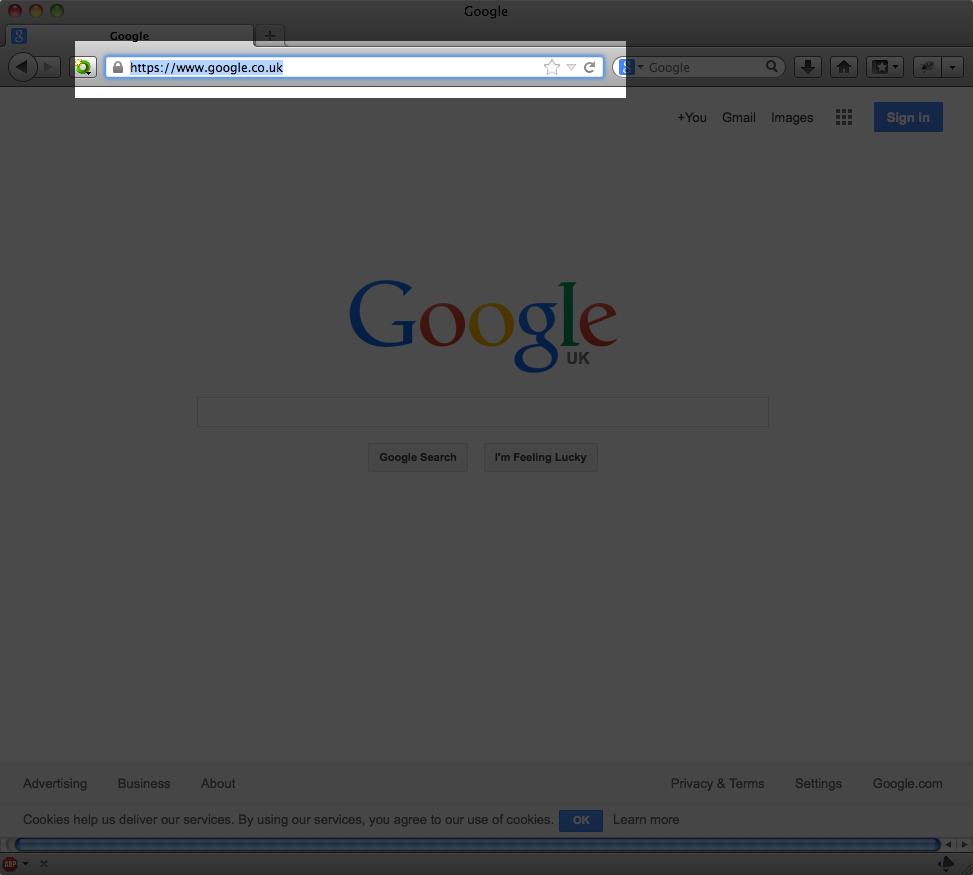
Locate the address bar (usually at the top of the screen:

-
Delete everything in the box and type: “webmail.” followed by your domain name. For example, if your email address is “fred@somedomain.com” you would type “webmail.somedomain.com”
Do NOT add “www” at the beginning! -
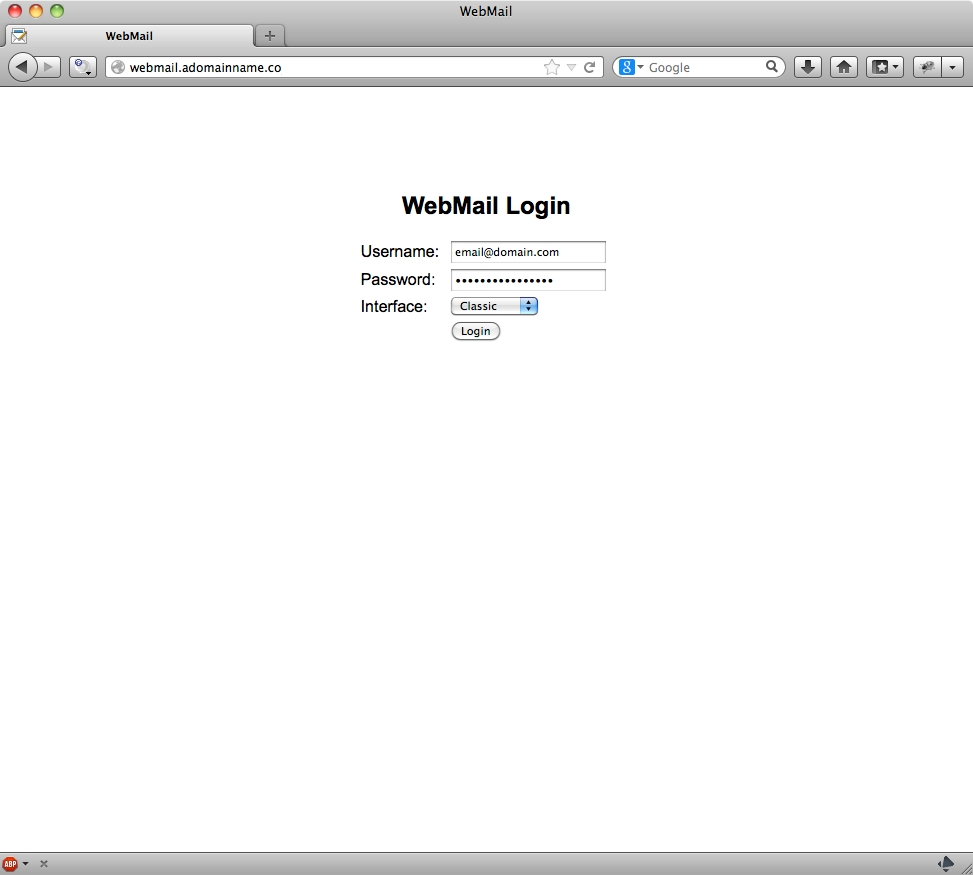
A login screen will appear:
-
Enter your email address in the box next to the word “Username“
-
Enter your password (contact Curly Hosting if you don’t know your password)
-
The option of choosing between “Classic” and “Advanced” displays the emails in a slightly different format. Most people prefer to use “Advanced” but the choice is up to you.
-
Once you have entered your login details click “Login”
The “Classic” email system:
Choosing classic loads the emails with the standard browser. The only real differences between the two systems are with styling and layout, but many people actually find the “Advanced” system easier to use. The “Standard” layout may load quicker if you are using a slow internet connection.
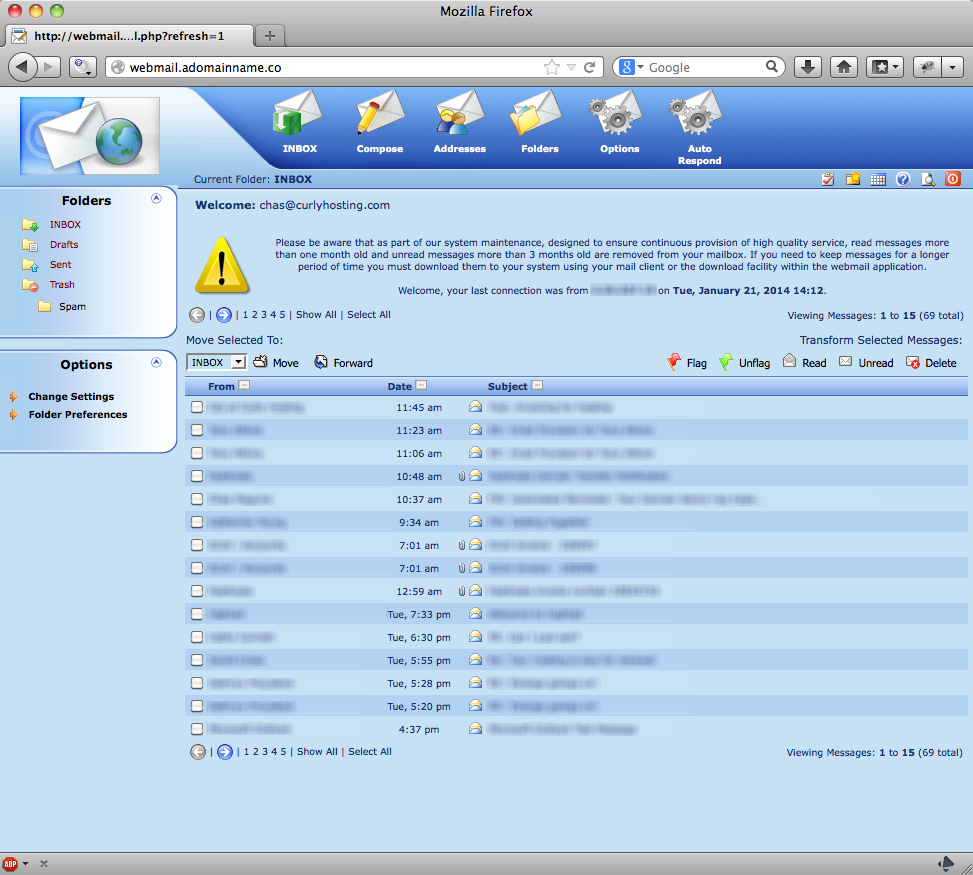
Controls and icons for “Classic” mode:
Click on this to view your inbox

Click on this to write a new email

Shows all addresses on the system (note – the webmail system only remembers email addresses that have been used via webmail, it won’t know all your addresses automatically)

You can create folders here – these are not synchronised with your usual email program so it is best not to use this unless webmail is your only method of checking emails

The option to change your password is here, along with display and format options for different languages. Recommended for expert users only as changing settings here can stop your mailbox from working!

Click here to set an auto-respond (out of office) message to be displayed on your emails

Basic controls and icons for the “Advanced” email system:
Refresh/reload inbox (Check for new emails)

Compose a new email

Reply to sender of selected email

Reply to multiple receipients of selected email (Reply All)

Forward selected email

Delete selected email

Mark/Flag selected message (Read/Unread – Flag/Unflag)

More settings (Print selected message, save email to your computer, edit as new, view message source, open in new window)

—
Further settings (at the top right of your webmail window)
Return to inbox from another screen in the webmail system (Address Book or Calendar, for example)

Address Book – note this address book doesn’t syncronise with your computer
Personal Settings – most users won’t need to change any settings in here with the exception of Auto Reply (out of office messages) or to change your password. Important – if you change your password here you will need to update the password on any other device that you use to check your emails (computer, mobile, tablet etc)
Logout – use this at the end of your webmail session – especially important if you’re using a computer that other people have access to

For any further questions about webmail please contact Curly Hosting using the contact form or by calling 01491 714000